Getting in at startup
Okay, so you’re trying to boot up a computer, but it’s password protected! What can we do now? We can do any number of things. I will cover 3 ways to get in here though.
First: Break in from prompt
The first way discussed here is by breaking in using ms-dos. You can either restart in ms-dos mode or when Windows is starting up hit the f8 button. The f8 button may or may not work depending on if the owner configured his system right. When you hit the f8 button you should get a list of ways to boot up. Chose boot up in MS-DOS mode. Once DOS is loaded type “cd c:\windows”. Now type “rename *.pwl *.npa”. Once you’ve done this reboot the machine. When it asks for a password enter whatever you want. What you did was rename the password file so Windows rewrites the pass file when it asks for the pass. Now you can go back into DOS and type “rename *.npa *.pwl”. Now everything is the way it was when you found it. The really cool thing about this concept is that most people don’t think to see when a file was last edited .
Second: Boot into safe mode
When Windows is booting hit the f8 key like you did above, but this time chose boot into safe mode. I know everything is ugly, but you have almost complete control of the system. I’ve had to use safe mode when I almost destroyed my computer a few times .
Third: Get in regular mode with no pass
When you boot Windows up, and you see that annoying login form. You don’t know the password, and you don’t feel like booting into safe mode or ms-dos mode. When the window pops up asking you for your login and password hit the keys “shift+escape”. Windows should now go on as planned. Note: (Make sure you log out when done. They can see that you didn’t login with a name. .
Changing the boot up pics to whatever you want
Well this is really not that hard. I guess Microsoft thought they could hide the files from people. All you need to do here is open up ms-paint by way of the accessories. Once it’s open click File then Open. Go to the C:\ directory and open the file “logo.sys”. Now that it’s open make sure you don’t make the picture any wider or change any of the attributes. If you do change the attributes you could damage the files. Okay now that you’ve made your startup screen the way you wanted it. Let’s edit the “Windows is shutting down” screen. Click file then open, and go to the C:\Windows directory. Open up logow.sys now you can edit away on this one. When you are done editing that file you can edit the “It is now safe to turn off your computer” screen by opening logos.sys in the C:\Windows directory.
Fun with the screen saver
Here is an interesting little trick. Right click on the desktop and go to properties. Now go to the screen saver panel. Chose the 3d text for the current screen saver. Click settings, now change the text to “volcano” without “s. Watch names of volcano’s appear on your screen.
MS-DOS tools
Tracert:
Usage: Trace the route of an ip on a network.
Example: tracert somebody.com
Ping:
Usage: Check for down computers on a network, or checking how well the computer is doing.
Example: ping somebody.com
Telnet:
Usage: Connect to a TCP port on a remote host.
Example: telnet localhost 25
Netstat:
Usage: Show open ports on your computer. You can see if anyone is connected to the port also.
Example: netstat –a
FTP:
Usage: Connect to a remote FTP server.
Example: ftp downloadfrom.com
Route:
Usage: See if you can figure this one out : )
Example: route
Arp:
Usage: See if you can figure this one out : )
Example: arp
Choice:
A good tool? Nah : ) I was browsing around one day and found choice.exe. Have some fun with this lol I did huh… I better get out more
Example: choice Want to play a game
Telnet
First off we will cover how to connect to a shell server. The simple command you run in ms-dos prompt or in the run window is “telnet host 23”. This basically means open telnet to the address host on port 23 (the standard telnet port). Once you connect you should get a prompt like this…
Mandrake Linux 7.2
login:
I know that’s not what it really looks like, but you get the idea. When it comes up with “login: “ you enter your username. Once you enter a user name it prompts you for a password.
Mandrake Linux 7.2
login: root
password: ********
Welcome!
[root@localhost /root]$
That’s what it would look like roughly if the login succeeds : ). However if it fails you get something like this.
Mandrake Linux 7.2
login: root
password: *****
Incorrect Login!
login:
You can normally enter a wrong password three times before it kicks you off the system. If you don’t have a username and password then you can sometimes guess them or crack them. You can also exploit a vulnerability say on SMTP. I don’t advise you doing so though . Once you are logged in you need to know how to run linux commands. I will cover some more commands in another tutorial some day, but here a just a few.
cd - change directory (example: cd /home)
ls - LiSt the files in the current directory.
pwd - show the current directory. (example: pwd) returns “/home”
more - display the contents of a file. (example: more passwd)
I know you can’t do much with just those commands, but you get the idea.
Spoofing emails
You can also spoof emails with telnet. Go into MS-DOS and type “telnet host 25” (port 25 is the standard SMTP port). Once you login you should see something like this
220 logs-wl.proxy.aol.com ESMTP Sendmail 8.10.0/8.10.0; Tue, 17 Sep 2002 17:33:34 -0400 (EDT)
Once you see that type “helo ”. The server will respond with a nice greeting message : ). Now type “mail from: ” then “rcpt to: ” now type “data”.
You can now start entering the body of the email. Just put a “.” on a line by itself without the “s. If you want to include a subject then right after you type data type “Subject: subjectdata”.
The tool on the site will automate this process, but you have to specify the server to use.
Browse Web Sites
Okay open up MS-DOS and type “telnet victim.com 80” (port 80 is the standard web server port). Once connected you won’t see a prompt. You just start entering commands from here. To get the mainpage on a server type “GET / HTTP/1.1 (enter enter)” don’t type enter enter, but hit the buttons . So for just browsing a web page with telnet type “GET /page HTTP/1.1”(enter enter) I don’t suggest doing this with telnet because it auto disconnects because HTTP doesn’t maintain a connection until you are done. You can download the HTTP tool from the site and browse with that.
FTP
Once again open up MS-DOS this time type “ftp site”. After it connects you should see a message like this.
Connected to site.
220 site FTP Server ready
User (sitenone)):
Once you see this type in the user name “anonymous”. It will now prompt for a password. You can either enter a fake email or none at all just test to see which works. You will then see a message like this.
230 Anonymous access granted, restrictions apply.
ftp>
You are now free to browse their site as you wish. Some people even give write access to anonymous (on accadent).
Useful Commands
ascii – change mode to ascii for transfers. (Use this when downloading/uploading text files.)
binary – Change mode to binary for transfers. (Use this when downloading/uploading executable files.)
bye – Exit.
cd – change directory.
delete – delete a file
dir – dos style file listing.
get – retrieve a file.
help – display help for commands.
lcd – change the local directory.
ls – list files/folders
mdelete – delete multiple files
mdir – list contents of multiple directories
mget – get multiple files
mkdir – make directory
mput – upload multiple files
open – make new connection
put – put a file on the server
pwd – show current directory
quit – exit
quote – send a specific command to the server
recv – get a from the server
remotehelp – get remote helpfiles
rename – rename a file/dir
rmdir – delete a directory
send – send a file
user – change login name
Showing posts with label new tricks 2009. Show all posts
Showing posts with label new tricks 2009. Show all posts
Friday, March 6, 2009

Thursday, February 19, 2009
new nokia 888

A personal mobile communication
device which lets you be free and fun. It is light, simple and
carefree. You can change its form according to your needs during the
day. You dont have to carry it in your pocket or on your wrist. You can
carry it anywhere, in anyform. You can roll it, bend it, put on your
clothes like a clip. It also makes some form changes that makes it more
ergonomical: i.e. when you want to talk on the phone,
the body form turns into the form of the good old telephone. You can
personalize these forms and record them. So it fits you the best in the
way that you have chosen. Also e-motions let you send forms to other
888 users: i.e. you can send a heart shape to your girlfriend or a dancing figure to your friends to call them to the party tonight. This way you can talk without words.

Technologies
that are used It uses liquid battery, speech recognition, flexible
touch screen, touch sensitive body cover which lets it understand and
adjust to the environment. It has a simple programmable body mechanism
so that it changes forms in different situations.
*
the functionality of design You dont have to carry it in your pocket or
on your wrist. You can carry it anywhere, in anyform. You can roll it,
bend it, put on your clothes like a clip. It also makes some form
changes that makes it more ergonomical: i.e. when you want to talk on
the phone, the body form turns into the form of the good old telephone.
You can personalize these forms and record them. So it fits you the
best in the way that you have chosen. The functions that it has also
create a feeling of electronical pet, as it senses your moves,
understand what you want, respond you in the best way. It learns you,
to fit you better.Also e-motions lets you send forms to the other 888
users. It could be the shape of a heart or a small dance. This way you
can talk without words.
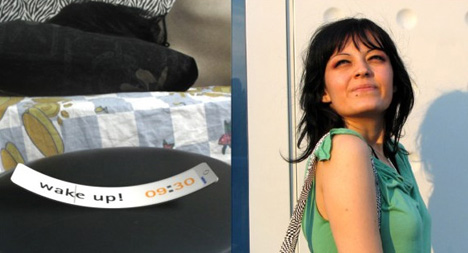

how the user interactsE-motions… It means electronical motions that 888
has. You can send and receive forms from / to friends. You can send a
heart shape to your girlfriend, so her telephone turns into an icon of
heart. Or you can send a dancing form to your friends to call them to
the party tonight. This is the fun side of the product. If we look from
the functionality side, 888 is quite flexible. You can put it into your
pocket, roll it and make it smaller, or put on your wrist when you want
to make a video call on the go. If you want to talk like a normal
telephone, there you have your telephone shape. We go through a lot of
places and situations in the daily life, so it seems like one form is
not enough.
Check this video out :http://www.youtube.com/watch?v=D3dF44XtHek
*
what is unique You can change the form of the body. Not just the color.
And you can do the same by sending an e-motion to your friend.
*
the inspiration The idea is that “the perfect form” does not exist.
“Form follows you” We create the perfect form for each function.
Designer: Tamer Nakisci
Subscribe to:
Posts (Atom)